> ## Documentation Index
> Fetch the complete documentation index at: https://hanabiaiinc-chore-update-openapi-schema.mintlify.site/llms.txt
> Use this file to discover all available pages before exploring further.
# Voice Design in the Web App
> Generate a custom voice from a text description in the Fish Audio web app
Voice Design turns a written description into an AI voice. You write a prompt, generate samples, pick your favorite, then add a few details and save. It is the fastest way to make an original voice, and it is best for characters rather than for cloning a real person.
This page covers the web app. To generate voices from code, see [Voice Design](/features/voice-design) in the API guide. To clone a real, verified voice at studio quality, see [Professional Voice Clone](/overview/platform/create-voice/professional-voice-clone).
## Before you begin
* **Sign in** at [fish.audio/app](https://fish.audio/app).
* **A paid plan.** Voice Design is not included in the Free plan. On the Free plan, you are asked to upgrade.
* **Credits.** The cost of each generation is shown below the **Generate Samples** button.
## Open Voice Design
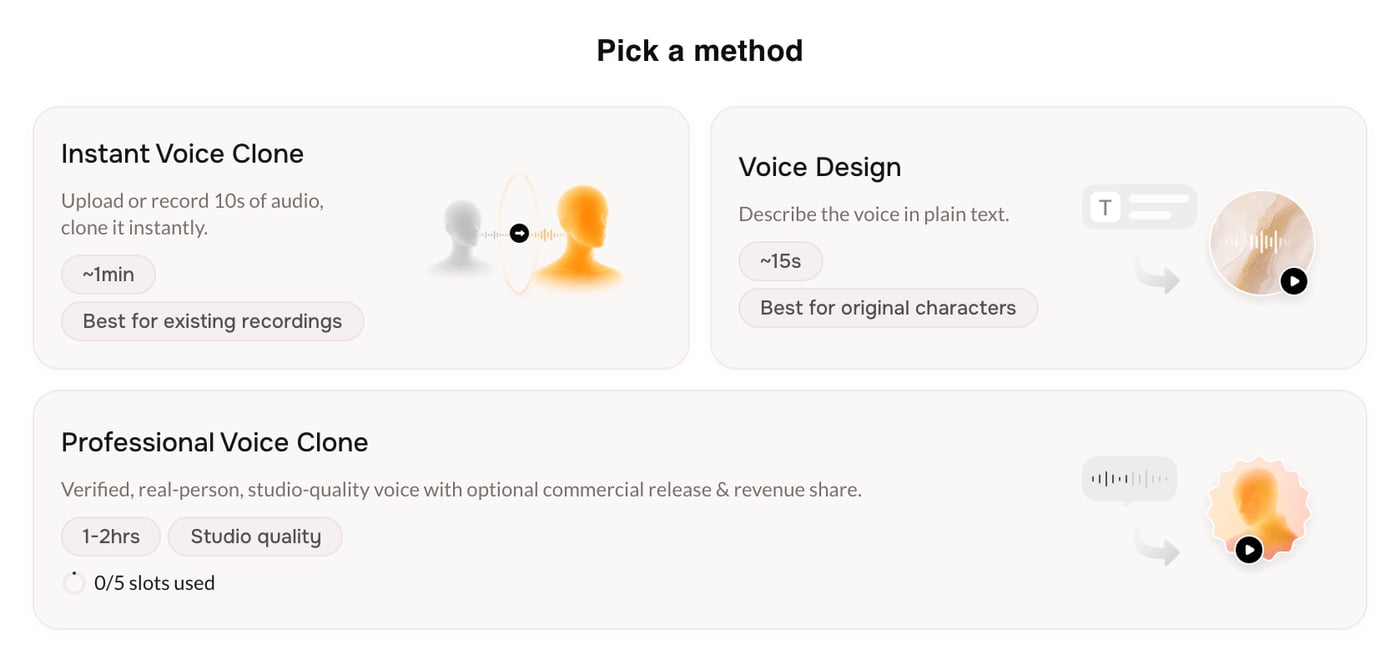
Go to [fish.audio/app/create-voice](https://fish.audio/app/create-voice) and, under **Pick a method**, choose **Voice Design**.
 ## Create the voice
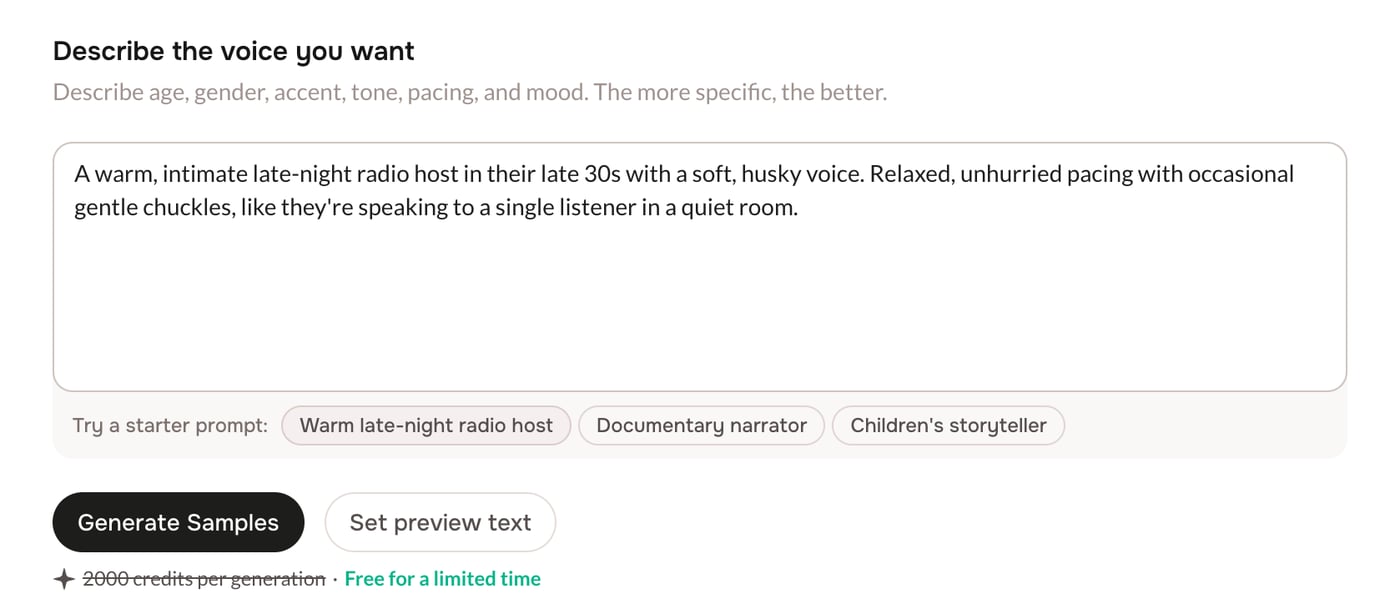
Under **Describe the voice you want**, type one or two specific sentences. For example: *"A warm, slightly raspy middle-aged narrator with a soft American accent. Calm, deliberate pace, great for late-night audiobooks."* Your description must be between 20 and 1000 characters.
To start faster, click a starter prompt such as **Warm late-night radio host**, **Documentary narrator**, or **Children's storyteller**.
To control what the samples say, click **Set preview text** and enter a short line (5 to 150 characters). If you leave it blank, Fish Audio writes a short sample for you.
Click **Generate Samples**.
## Create the voice
Under **Describe the voice you want**, type one or two specific sentences. For example: *"A warm, slightly raspy middle-aged narrator with a soft American accent. Calm, deliberate pace, great for late-night audiobooks."* Your description must be between 20 and 1000 characters.
To start faster, click a starter prompt such as **Warm late-night radio host**, **Documentary narrator**, or **Children's storyteller**.
To control what the samples say, click **Set preview text** and enter a short line (5 to 150 characters). If you leave it blank, Fish Audio writes a short sample for you.
Click **Generate Samples**.
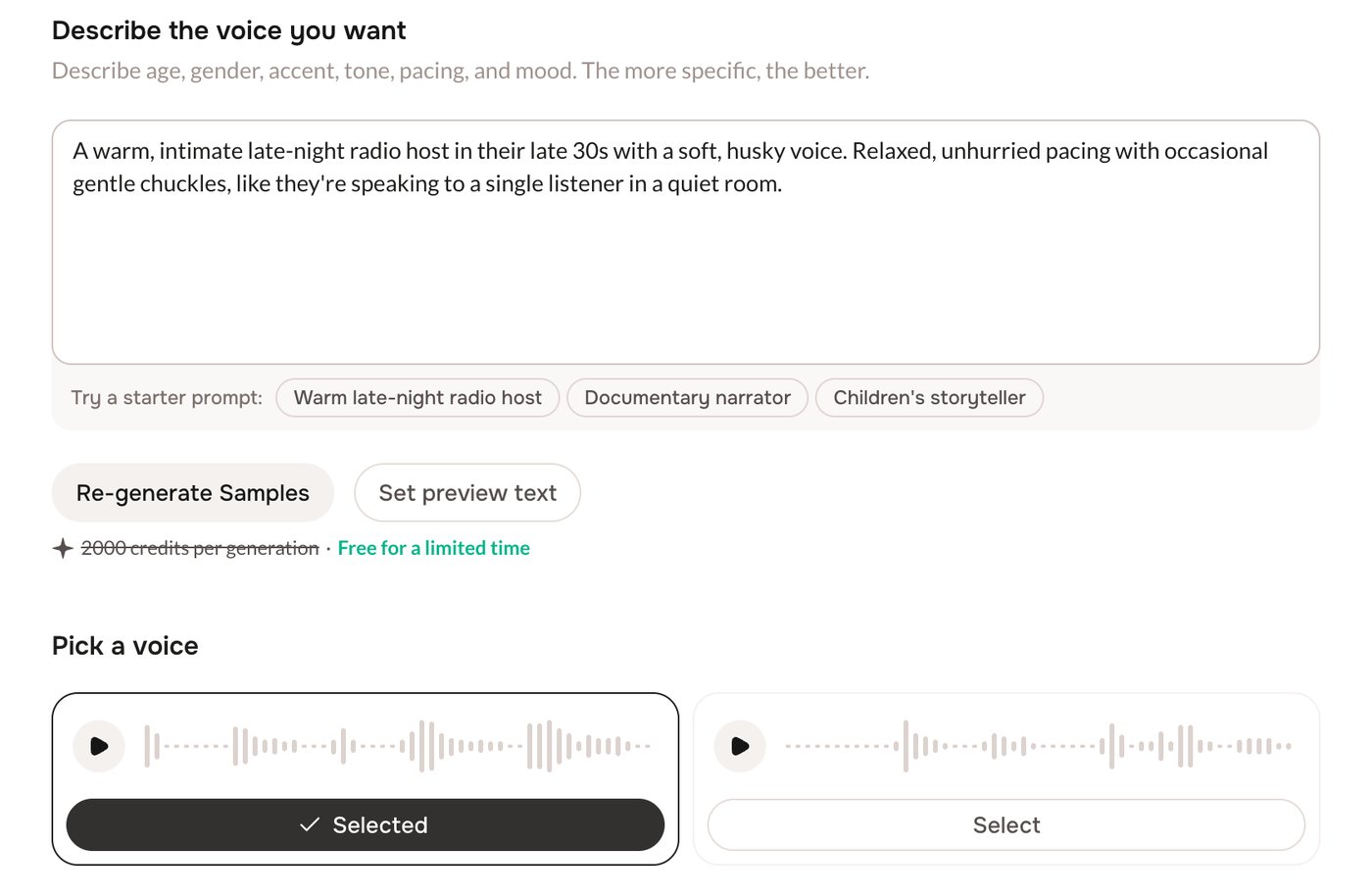
 When generation finishes, the **Pick a voice** section shows two samples. Click **play** on a card to listen, and click the waveform to jump to a spot.
Not happy with either? Click **Re-generate Samples** for a new pair. Your earlier pairs are kept: use the arrows next to the counter to go back to them.
Click **Select** on the sample you want (it changes to **Selected**), then click **Continue**.
When generation finishes, the **Pick a voice** section shows two samples. Click **play** on a card to listen, and click the waveform to jump to a spot.
Not happy with either? Click **Re-generate Samples** for a new pair. Your earlier pairs are kept: use the arrows next to the counter to go back to them.
Click **Select** on the sample you want (it changes to **Selected**), then click **Continue**.
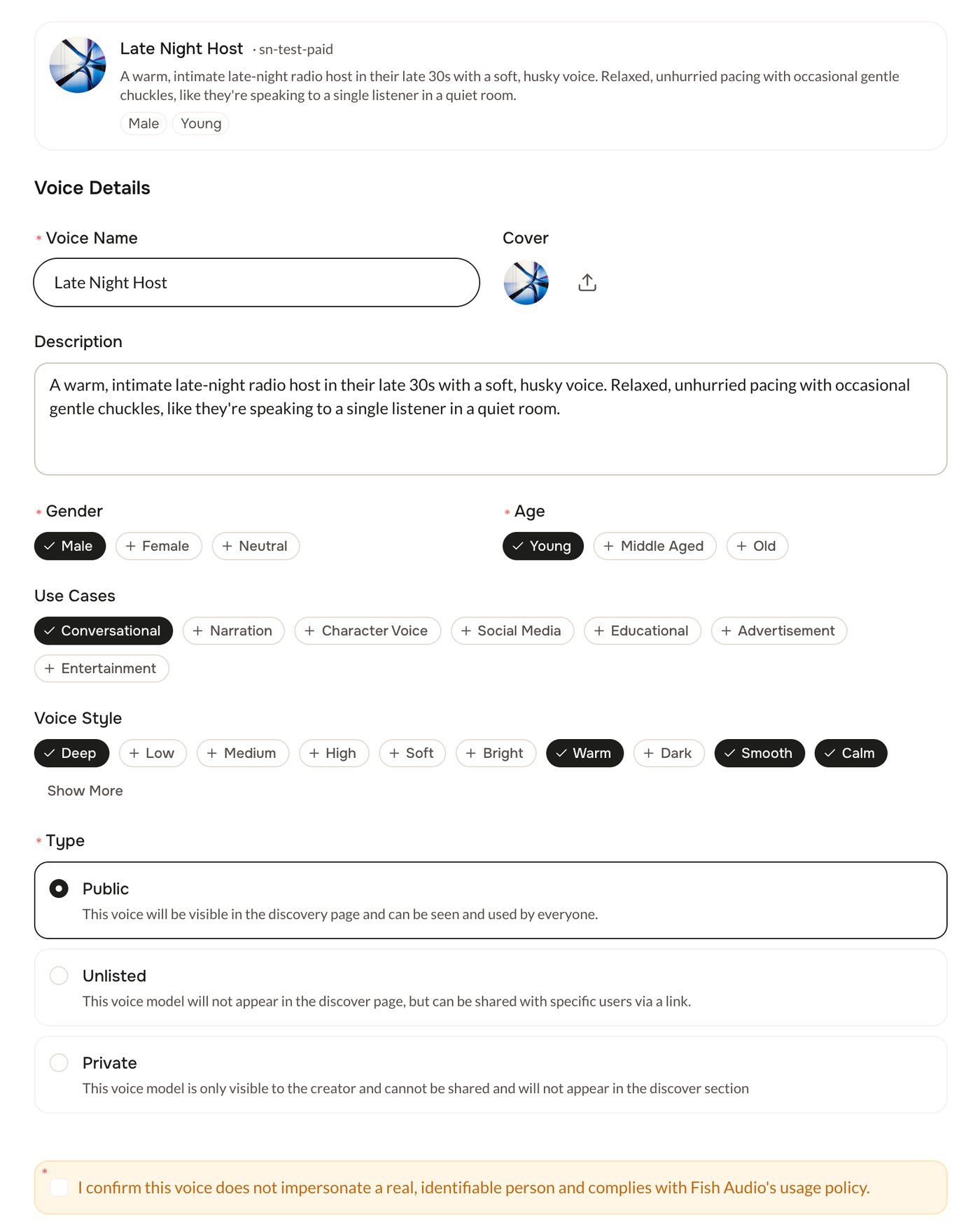
 On the **Voice Details** screen, a preview card updates as you fill in the form. Fish Audio fills in some fields for you from your description and the selected sample. Check them and change them if necessary.
* **Voice Name** (required).
* **Gender** (Female, Male, or Neutral) and **Age** (Young, Middle Aged, or Old) (required).
* **Cover**, **Description**, **Use Cases**, and **Voice Style** (optional).
* **Type**: **Public** (shown in discovery), **Unlisted** (shareable by link), or **Private** (only you).
Tick the confirmation box (*"I confirm this voice does not impersonate a real, identifiable person and complies with Fish Audio's usage policy."*), then click **Create Voice**. Your voice is saved and you land on **My Voices**.
On the **Voice Details** screen, a preview card updates as you fill in the form. Fish Audio fills in some fields for you from your description and the selected sample. Check them and change them if necessary.
* **Voice Name** (required).
* **Gender** (Female, Male, or Neutral) and **Age** (Young, Middle Aged, or Old) (required).
* **Cover**, **Description**, **Use Cases**, and **Voice Style** (optional).
* **Type**: **Public** (shown in discovery), **Unlisted** (shareable by link), or **Private** (only you).
Tick the confirmation box (*"I confirm this voice does not impersonate a real, identifiable person and complies with Fish Audio's usage policy."*), then click **Create Voice**. Your voice is saved and you land on **My Voices**.
 ## Leave and come back
Fish Audio saves your progress in this browser: your description, your samples, the selected sample, and the details you entered. When you open Voice Design again, you continue where you stopped. The saved draft is cleared after you create the voice.
## Troubleshooting
Voice Design needs a paid plan. Upgrade your plan to design voices from text.
Some plans limit how many Private and Unlisted voices you can have. When you reach the limit, set the voice **Type** to **Public**, or upgrade your plan.
Fill in every required field: **Voice Name**, **Gender**, **Age**, and the confirmation box. The page scrolls to the first field that needs attention.
## Next steps
Clone a real, verified voice at studio quality.
Find, edit, and use the voices you have created.
This documentation is built and hosted on [Mintlify](https://mintlify.com), a developer documentation platform.
## Leave and come back
Fish Audio saves your progress in this browser: your description, your samples, the selected sample, and the details you entered. When you open Voice Design again, you continue where you stopped. The saved draft is cleared after you create the voice.
## Troubleshooting
Voice Design needs a paid plan. Upgrade your plan to design voices from text.
Some plans limit how many Private and Unlisted voices you can have. When you reach the limit, set the voice **Type** to **Public**, or upgrade your plan.
Fill in every required field: **Voice Name**, **Gender**, **Age**, and the confirmation box. The page scrolls to the first field that needs attention.
## Next steps
Clone a real, verified voice at studio quality.
Find, edit, and use the voices you have created.
This documentation is built and hosted on [Mintlify](https://mintlify.com), a developer documentation platform.